How to Combine Audio Files Into One (Free): Computer, iPhone and Android
Table of Contents
You can combine audio files into one for free in about a minute, without installing anything on a computer.
The right tool depends on two things: where your files are, and whether they should play one after another or on top of each other.
Quick pick
| What you want | Use | Price |
|---|---|---|
| Merge many MP3, M4A or WAV files on a computer | iTool Audio Merge (browser) | Free, up to 30 files |
| Join voice memos or songs back to back on your phone | JoinSound (iPhone, Android) | 2 files free, more with a one-time purchase |
| Put music under a voice, or layer clips on top of each other | AudioJoin (iPhone, Android) | 2 clips free, more with a one-time purchase |
All three keep your audio on your own device.
None of them uploads your files to a server.
1. On a computer: merge audio files online for free
If the files are on your Mac or PC, a browser is the fastest way.
iTool Audio Merge works on Windows, Mac and Chromebook, with no sign-up.
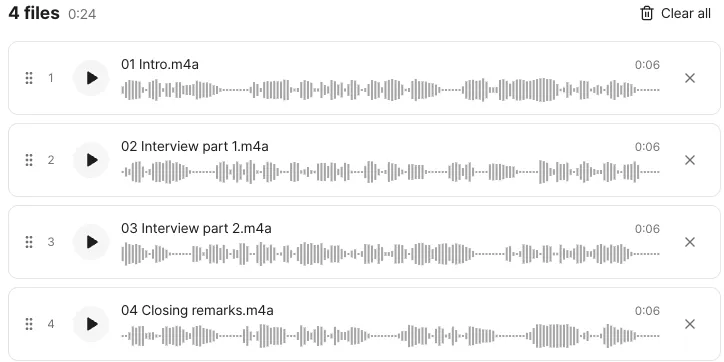
- Open iTool Audio Merge and drop your files onto the page.
MP3, M4A, WAV, AAC, FLAC, OGG and OPUS all work. You can even drop an MP4 or MOV video and it uses only the sound. - Press play on any row to check it.
Tap the waveform to jump to a point. When one file ends, the next row plays, so you hear the order you will get. - Drag the handle on the left to reorder.
- Press Merge and save, listen to the result and download one MP3 file.
Will the quality drop?
If all your files are MP3s with the same format, they are joined frame by frame.
Nothing is re-encoded, so the quality stays exactly the same.
If you mix formats, the result is encoded once as a 192 kbps MP3.
Voice recordings that are all mono are saved as 96 kbps mono, which is half the size and sounds the same for speech.
Good for: audiobook chapters, lecture recordings split into parts, a playlist for a workout or an event, podcast segments.
2. On iPhone or Android: join recordings back to back
The Voice Memos app on iPhone has no merge button.
Most Android recorder apps don’t either.
JoinSound does this one job.
It looks and works just like the browser tool above, but on your phone.
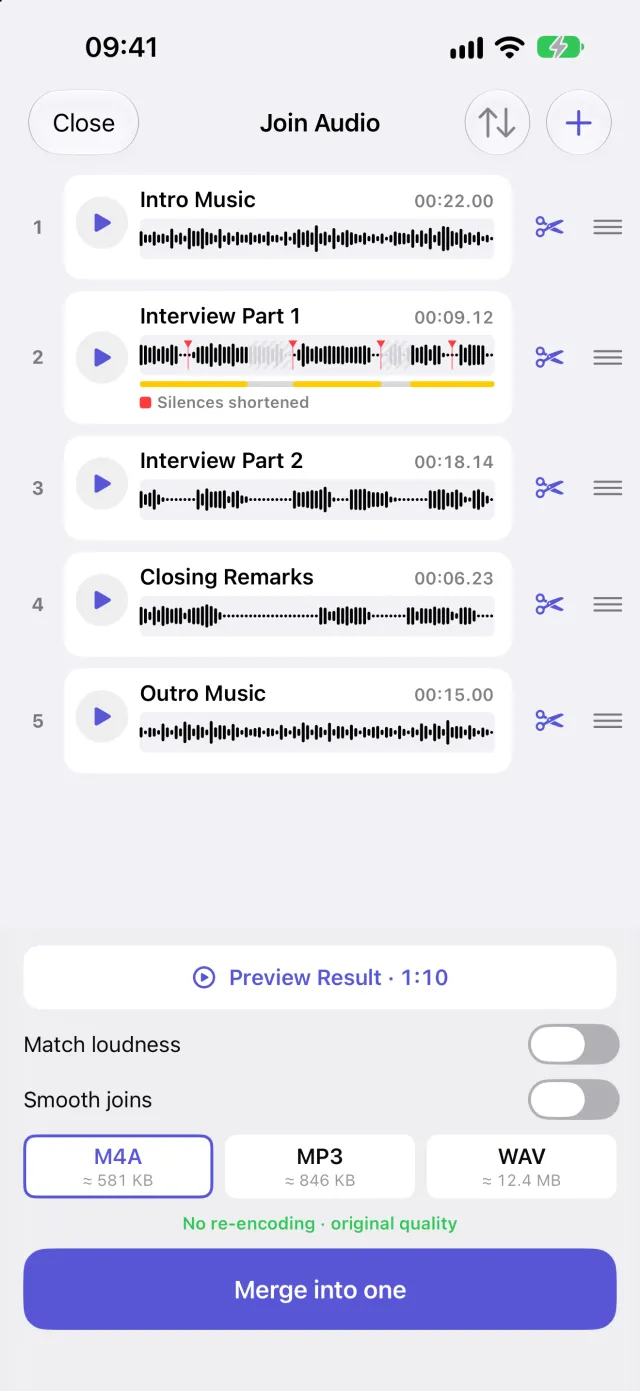
- In Voice Memos (or any app with a share button), tap Share and choose JoinSound.
Or open JoinSound and pick audio files from Files. - Drag the rows into order.
- Trim the start and end of each file, or keep only the parts you need.
- Listen to the whole thing and save it as one file.
JoinSound can also match loudness, so a quiet recording and a loud one sound even.
It shows long silences in each file and can shorten them, which is handy for meetings and lectures.
Free: join 2 files, match loudness and save as M4A.
Plus (one-time purchase, no subscription): as many files as you like, silence shortening, MP3 and WAV export.
Need to merge 10 files and don’t want to pay?
Save them to Files, open iTool Audio Merge in Safari on the same iPhone, and merge them there for free.
Download JoinSound for iPhone · Get it on Google Play
3. Layer audio on top of each other: music under a voice
Sometimes “combine” means something else.
You want background music to play under your voice, not after it.
That needs tracks that play at the same time.
AudioJoin is a small multitrack editor for your phone:
- Put a song on one track and your voice on another, each with its own volume.
- Trim clips on a zoomable timeline, or fine tune on a full screen waveform.
- Change a clip’s speed from 0.5× to 2× without changing the voice.
- Clips on a single track with the same format are joined without re-encoding.
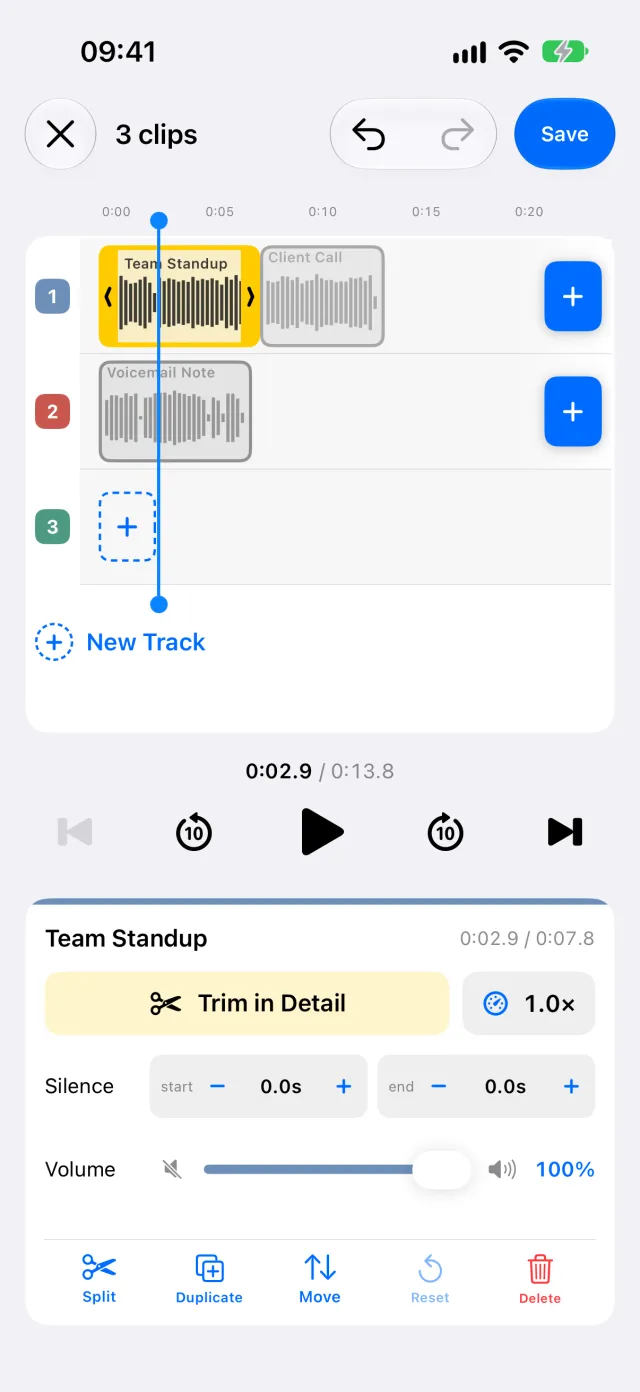
Free: 2 clips on up to 3 tracks, saved as M4A. That is enough for one song under one voice.
Plus (one-time purchase): 3 or more clips, more tracks, silence shortening, MP3 and WAV export.
Download AudioJoin for iPhone · Get it on Google Play
Which one should you use?
- Many files, on a computer, free: iTool Audio Merge.
- Voice memos on your phone, one after another: JoinSound.
- Music and voice at the same time: AudioJoin.
Start with the free version of each.
If it does what you need, you are done.
Tips for a clean result
- Name files with numbers (01, 02, 03) before you add them. They are easier to put in order.
- Check the joints. Listen to the last few seconds of one file and the start of the next. Tap near the end of a waveform to jump there.
- MP3s have tiny gaps at joints. Every MP3 carries a few hundredths of a second of padding, so a short gap can remain where two MP3s meet. For speech you won’t notice it.
- Keep the originals until you have listened to the merged file once.
Found this helpful? Share it
Frequently Asked Questions
How do I combine audio files into one for free?
On a computer, open iTool Audio Merge in your browser, add the files, drag them into order and press Merge and save. You get one MP3 file. Nothing is uploaded and there is no sign-up. On a phone, JoinSound (iPhone and Android) joins 2 files for free and saves them as M4A.
Can I combine voice memos on iPhone?
The Voice Memos app has no merge button. Select a recording, tap Share and send it to JoinSound, repeat for the next one, put them in order and save. You can also save the memos to Files and merge them on a computer with iTool Audio Merge.
Does merging MP3 files lower the quality?
Not if every MP3 has the same format. iTool Audio Merge joins those frame by frame without re-encoding. If you mix formats (for example MP3 and M4A), the result is encoded once as a 192 kbps MP3, or 96 kbps mono when every file is a mono recording.
How do I put music under a voice recording?
That is layering, not joining. AudioJoin (iPhone and Android) has tracks that play at the same time, so you can put a song on one track and your voice on another and set a volume for each.
Is there a limit on how many files I can merge?
iTool Audio Merge takes up to 30 files at once, up to 200 MB each and 1 GB in total. JoinSound and AudioJoin join 2 files for free; joining 3 or more is a one-time purchase, not a subscription.
Are my files uploaded anywhere?
No. iTool Audio Merge processes everything inside your browser, and JoinSound and AudioJoin process everything on your phone. Your recordings never leave your device.
Related Posts
Your iPhone Won't Stamp the Date on Photos? Add a Film-Camera Date in Seconds
Phone cameras don't print the date on your photos, and the iPhone has no option for it. Here's how to add a film-camera style date and time to photos you already took, free and in your browser.
How to Read Google Play Books on Kindle or BOOX (EPUB Conversion Guide)
Step-by-step guide to exporting Google Play Books as EPUB using Adobe Digital Editions and Calibre — so you can read your purchased books on Kindle, BOOX, or any e-reader.
How to Convert WebP to JPG - Open Images on Any Device
WebP images won't open or share? Convert to JPG for universal compatibility on any device. Free online tool, no software or sign-up needed.