How to Merge PDFs - Combine Multiple PDFs and Images into One File
Table of Contents
Struggling with scattered PDF files? This guide shows you how to combine multiple PDFs and images with just a few clicks.
No software installation needed. No sign-up required.
Works right in your browser! Makes document management easier and saves you time.
Real-World Use Cases
Tom, Office Worker Combined contract PDF + attachment JPG + ID card PNG into one file for submission.
Emma, College Student Merged assignment cover image + main content PDF + reference PDF into one complete report.
Alex, Freelancer Organized months of receipt photos (HEIC format) into monthly PDF files.
Lisa, Job Seeker Combined application form + cover letter + photo + diploma into one file and sent via email.
How to Merge PDFs (3 Steps)
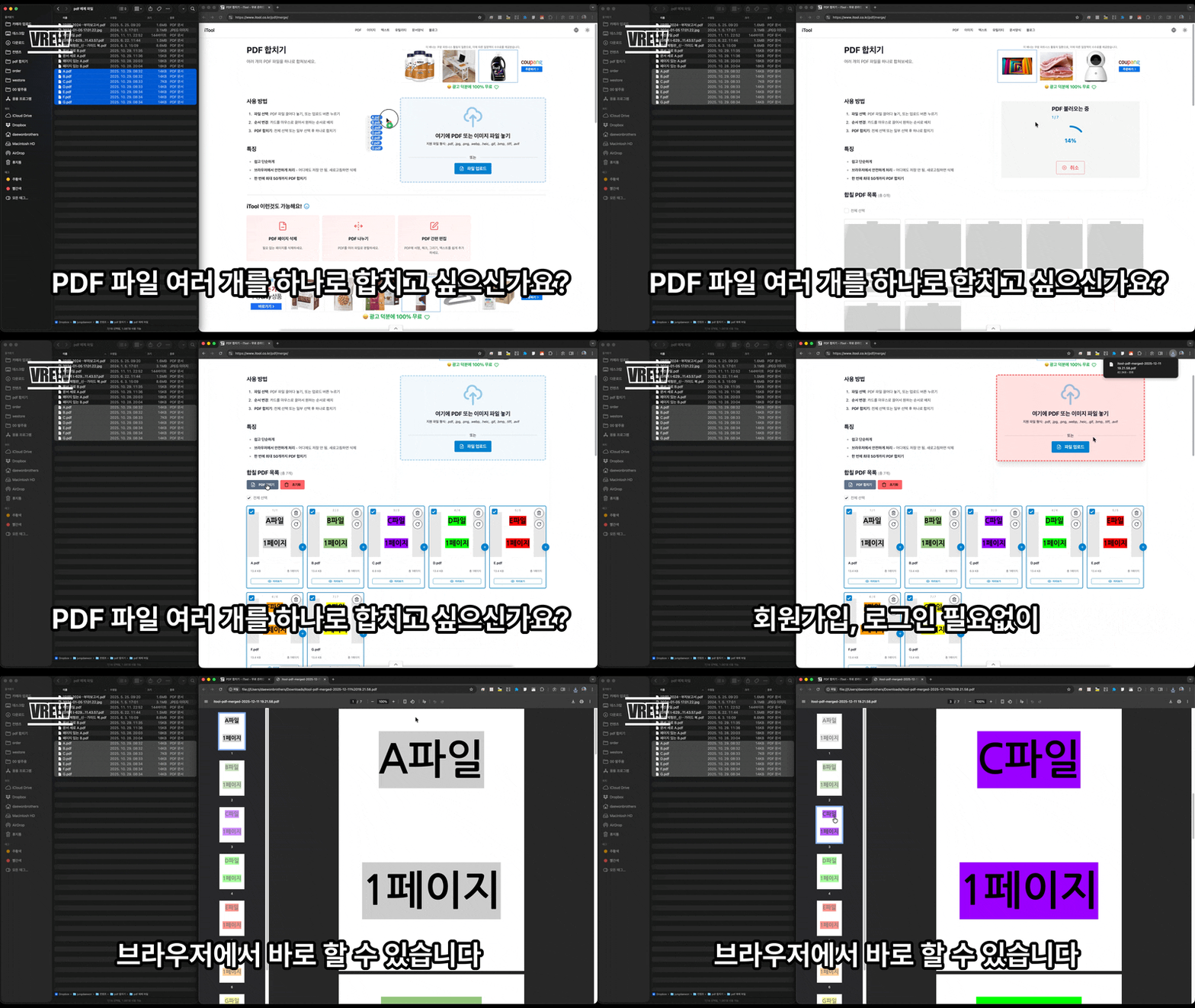
Step 1: Upload Files
Drag and drop or click “Upload Files” button. Add up to 50 files at once.
Step 2: Arrange Order
Drag cards to arrange them in your desired order. Rotate, delete, or add more files freely.
Step 3: Download
Click “Merge Selected PDFs” and you’re done! Download starts automatically.
Watch the Tutorial
iTool vs Other Tools
| Feature | Generic Online Tools | Adobe Acrobat | iTool |
|---|---|---|---|
| Price | Free~Paid | $19.99/month | Completely Free |
| File Size Limit | 10-20MB | Unlimited | 100MB per file, 300MB total |
| Privacy | Server upload required | Desktop software | Browser-based processing |
| Image Support | Limited | Supported | All formats supported |
| Installation | Not required | Required | Not required |
Key Features
Supported File Types Not just PDF - also JPG, PNG, WebP, HEIC, GIF, BMP, TIFF, AVIF! Images are automatically converted to PDF.
Safe Processing All operations happen in your browser. Files are never sent to any server - 100% secure.
Editing Tools Rotate pages, delete, insert between pages, add blank pages - all possible.
Found this helpful? Share it
Frequently Asked Questions
Can I change the order of files before merging?
Yes! Just drag the file cards to rearrange them in any order you want. You can also rotate or delete individual pages.
Can I merge images together with PDFs?
Absolutely! iTool supports JPG, PNG, WebP, HEIC, and more. Images are automatically converted to PDF pages during the merge.
Are my files sent to a server?
No! All merging happens in your browser. Your files never leave your device, so it's completely safe for sensitive documents.
Can I select only certain files to merge?
Yes! Use the checkboxes to pick exactly which files you want to include. Only the selected files will be merged.
Related Posts
How to Split PDF - Easily Divide PDFs with Scissors Icon
Learn how to split PDF files into multiple documents. A practical guide for dividing PDFs safely and quickly in your browser.
How to Delete PDF Pages - Remove Unwanted Pages Easily
Learn how to delete specific pages from a PDF. Select with checkboxes and remove pages with just one click.
Your iPhone Won't Stamp the Date on Photos? Add a Film-Camera Date in Seconds
Phone cameras don't print the date on your photos, and the iPhone has no option for it. Here's how to add a film-camera style date and time to photos you already took, free and in your browser.